Install it in a few minutes
Three ways to offer it to your shoppers, all set up in Shopify's theme editor, then the five install steps with a screenshot of each.
-
the block goes
wherever you drop itA block on any page
Your home page, a collection or a landing page. Headline, prompts, button and accent colour are yours to set, and it uses your theme's fonts.
-
one small button,
every pageA floating launcher
A “Gift ideas” button in the corner of every page. It opens the finder in a panel, a bottom sheet on phones, so shoppers can ask from wherever they are.
-
a gift guide
that answers backA gift page of its own
The block on a page of its own, linked from your menu, emails and campaigns. A Christmas gift guide that asks who it's for.
The install steps
-
Install from the Shopify App Store
Open the listing and click Install. Shopify shows what the app can read (products and inventory, nothing about customers or orders) and asks you to approve it. No account or password to create.
-
Pick a plan, or stay on Free
The WellChosen home page opens in your admin and your catalogue starts syncing. Free needs nothing more. To try a paid plan, click Choose a plan; Shopify shows the 7-day trial and adds the plan to your invoice when it ends.
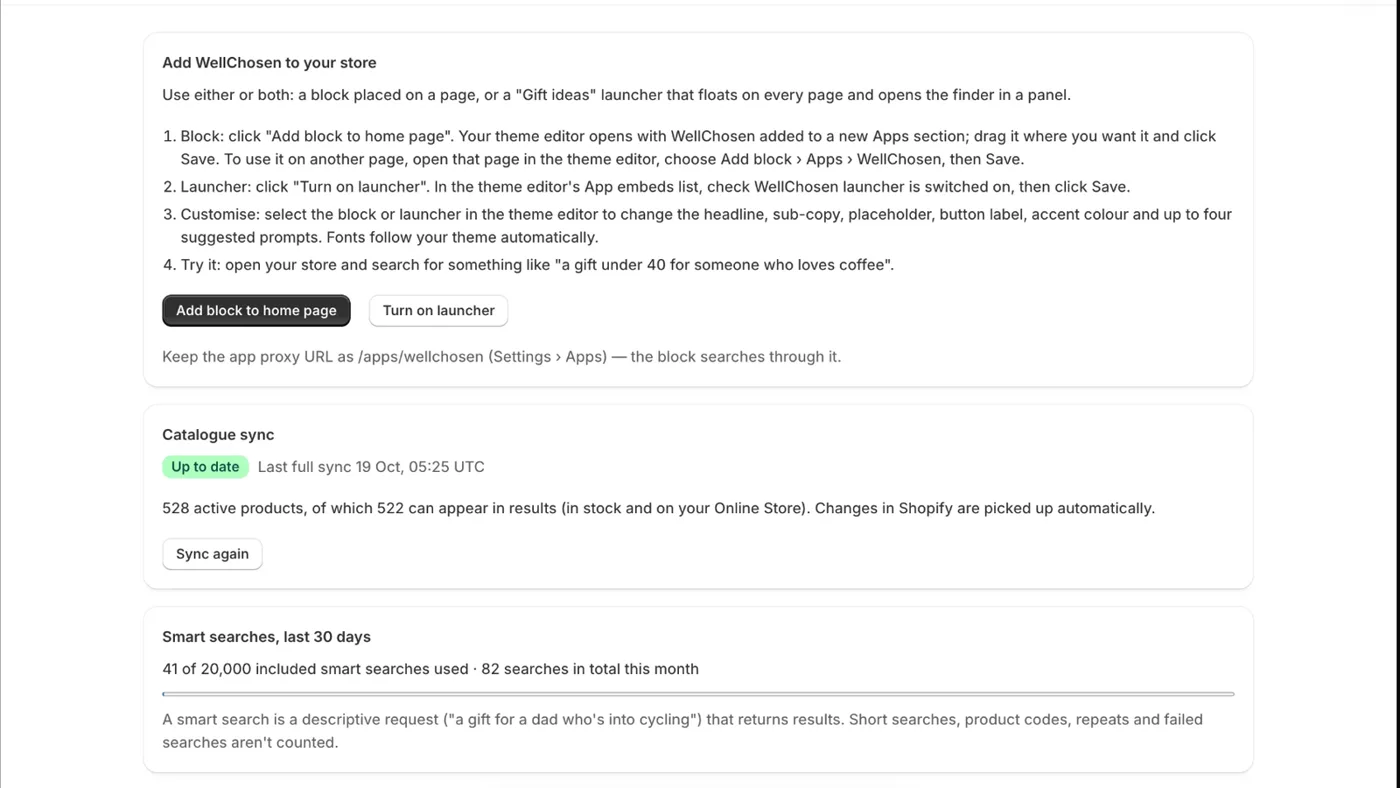
the app’s home page in your admin -
Add the block
Click Add block to home page. Your theme editor opens with WellChosen in a new Apps section. Move it where you want it, change the headline, prompts and accent colour in the panel on the left, and click Save. For another page, open it in the editor and choose Add block, then Apps, then WellChosen.
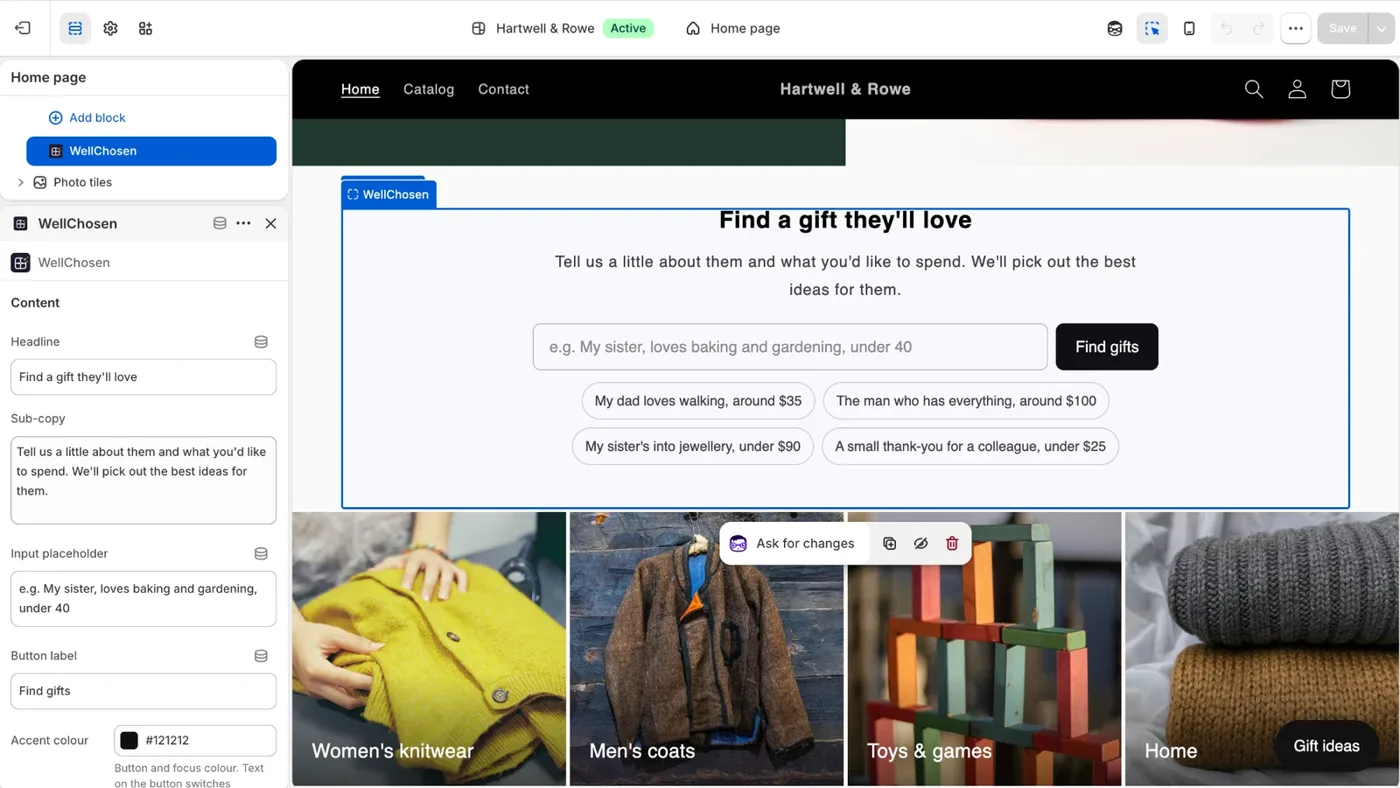
the block, selected in the theme editor -
Turn on the launcher
Click Turn on launcher. The editor opens its App embeds list with WellChosen launcher switched on. Click Save. You can use the block, the launcher, or both.
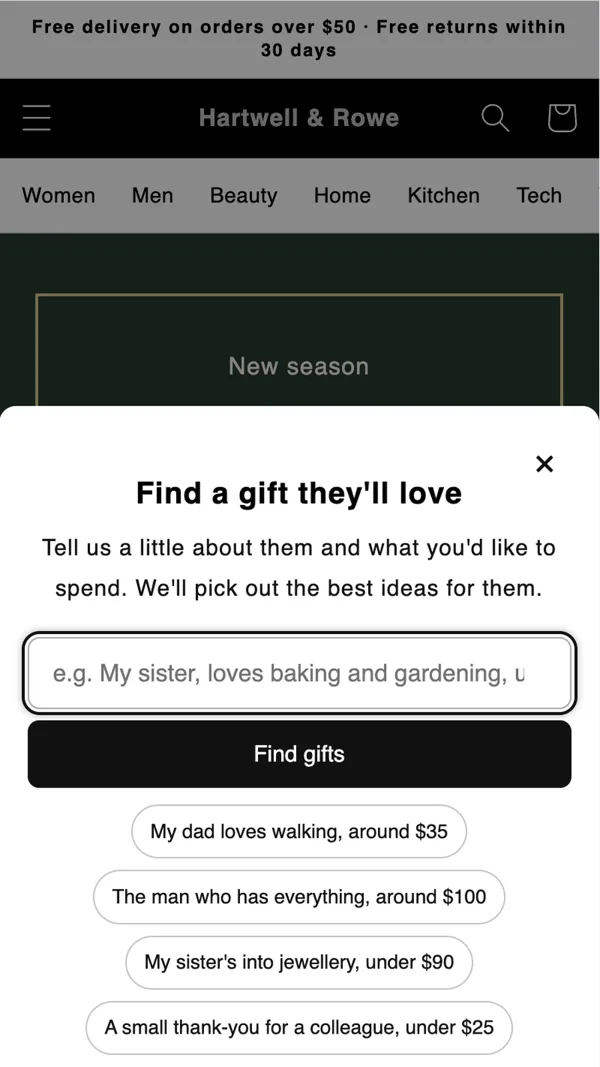
the launcher on a phone -
Try it on your storefront
Type a request that suits your products, such as “a gift under 40 for someone who loves coffee”, and press Find gifts. Mark a product out of stock in Shopify and search again: it's gone. Your catalogue stays in sync on its own from here.
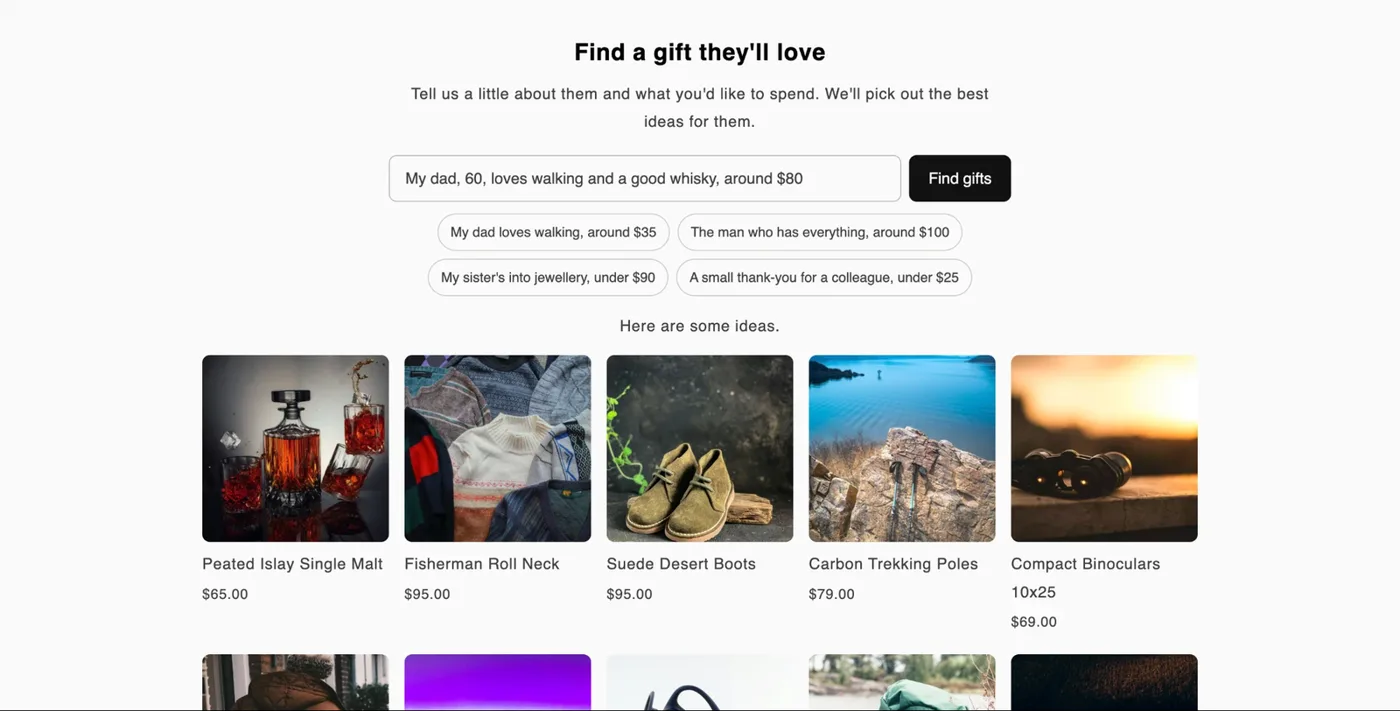
a request and its results on the storefront